You haven't signed in yet, you can have a better experience after signing in
*Please complete the payment within {{receiveCouponInfo.expire_at}}Previous use*
You haven't signed in yet, you can have a better experience after signing in



Activity Rules
1、Activity time:{{ info.groupon.start_at }} ~ {{ info.groupon.end_at }}。
1、Activity time:cease when sold out。
2、Validity period of the Group Buying:{{ info.groupon.expire_days * 24 }} hours。
3、Number of Group Buying:{{ info.groupon.need_count }}x。
Please Pay Attention
1、Teamwork process: Join/initiate a Group Buying and make a successful payment - Within the validity period, the number of team members meets the activity requirements - Group Buying succeeded!
2、If the number of participants cannot be met within the valid period, the group will fail, and the paid amount will be refunded in the original way.
3、The number of people required and the time of the event may vary among different products. Please pay attention to the rules of the event.
With Bandicam, you can easily record any area on your Mac screen, supporting synchronized recording of system sound and microphone, and adding camera overlay. After recording, you can quickly edit the recorded content to create a perfect movie.
Core features of Bandicam macOS:
Ultra clear resolution
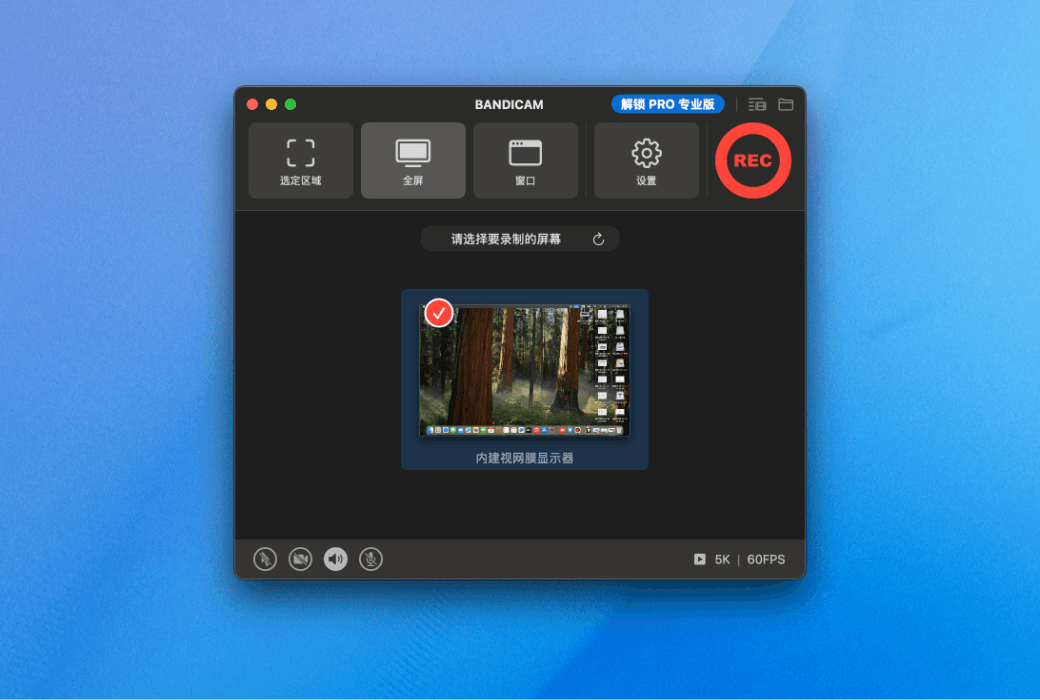
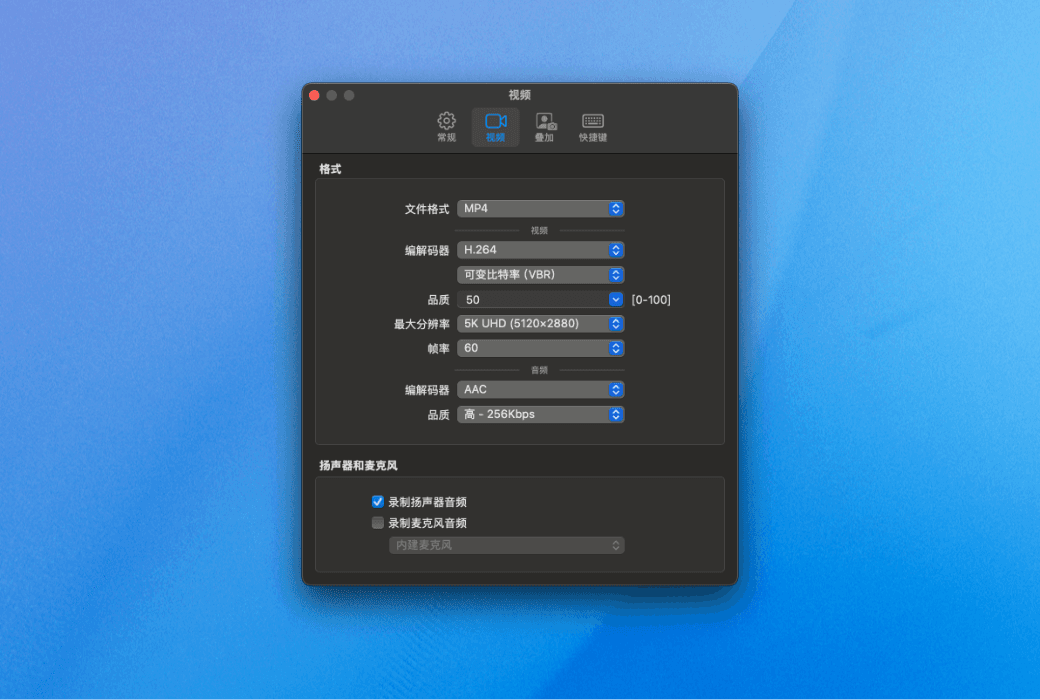
With Bandicam macOS version, you can record screen content with up to 5K ultra clear resolution, with delicate and clear picture quality, suitable for various professional recording needs. Supports 60 frames per second (60FPS) for smooth operation
Flexible selection of recording area
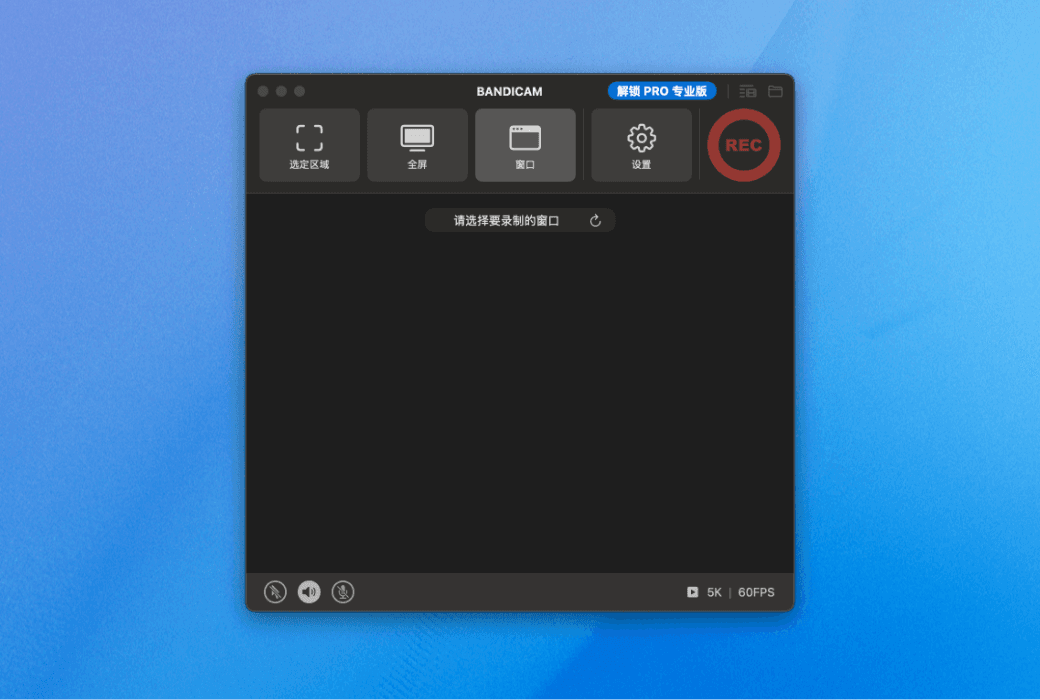
Support free selection of recording area: Whether it is a designated area, a specific window, or full screen display, it can be easily recorded to meet various screen recording needs and accurately capture the desired image.
Synchronize screen and camera recording
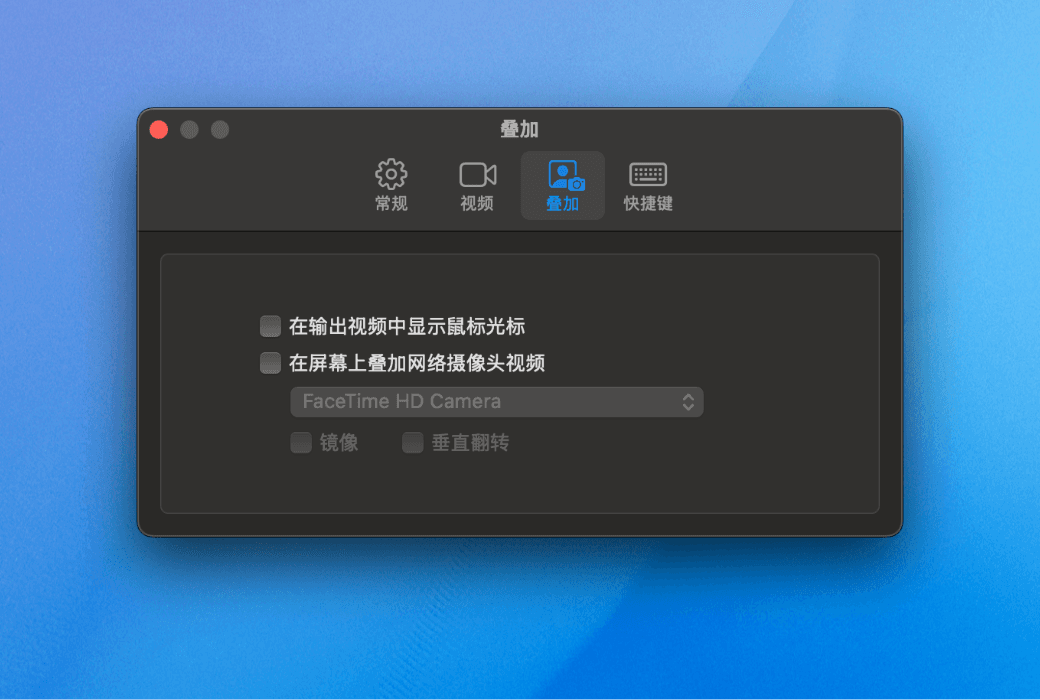
Bandicam macOS version supports overlaying camera footage onto screen recording, allowing you to display both the operation screen and your own image simultaneously. Very suitable for creating interactive content such as instructional videos and game commentary, greatly enhancing the professionalism and viewing experience of the film.
Clear audio recording
Bandicam macOS version can simultaneously record system and microphone sound, ensuring pure and clear sound quality, and perfectly restoring every sound detail.
Built in video editing function
After recording is completed, you can immediately use the built-in video editing tool to quickly crop unnecessary clips, easily save the most perfect recording content, and improve post-processing efficiency.
Official website:https://www.bandicam.cn/mac/
Download Center:https://bandicam-mac.apsgo.cn
Backup Download:N/A
Delivery time:Manual online processing
Operating Platform:macOS
Interface language:Supports Chinese interface display and multiple language options.
Update Description:Free updates and usage during the subscription period.
Trial before purchase:Free trial is available before purchase.
How to receive goods:After purchase, the activation information will be sent to the email address at the time of placing the order, and the corresponding product activation code can be viewed in the personal center, My Orders.
Number of devices:Can install 1 Mac.
Replace computer:Uninstall the original computer and activate the new computer.
Activation guidance:To be added.
Special note:To be added.
reference material:https://www.bandicam.cn/mac/

Any question

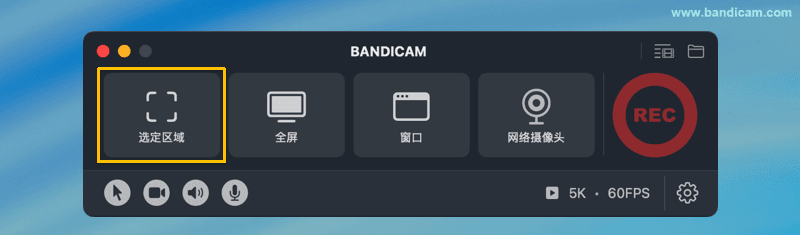
Bandicam macOS version provides powerful "selected area" screen recording function, supporting precise capture of any part of the Mac screen,
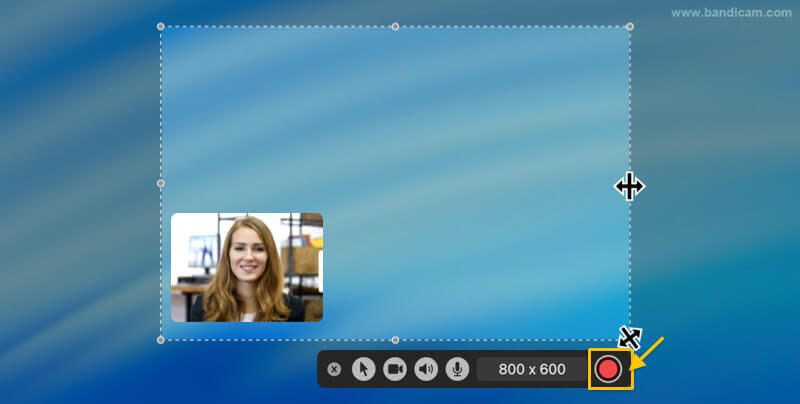
Customizable recording range, adjustable size and position, combined with system audio, microphone and camera images, to achieve high-definition, latency free professional level recording experience.
How to Record a Specific Area of Mac Screen
Step 1 Install Bandicam on Mac App Store and launch it
https://apps.apple.com/cn/app/id6745725677
Step 2 Configure mouse cursor effects, camera overlay, and audio recording (optional)
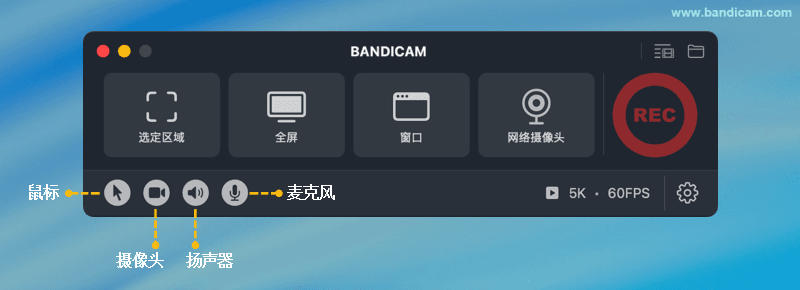
Mouse cursor: After activation, the click and movement trajectories can be highlighted for easy tutorial demonstration.
Camera overlay: Place the camera image in the recorded video, suitable for teaching, conference commentary, or live streaming recording.
Recording audio: Support synchronous recording of system audio and microphone, capable of capturing computer sound and instructional voice, making video information more complete.
Step 3 Select the "Selected Area" recording mode and box the recording range
Step 4 Adjust the position or size of the recording box and start recording
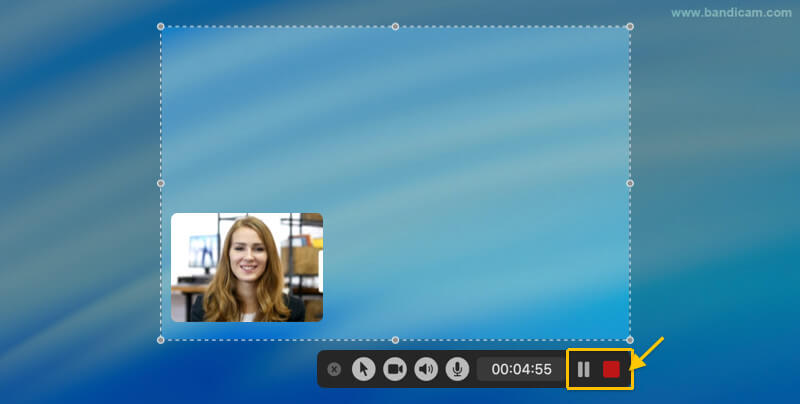
Step 5 During recording, click ❚❚ Button to pause recording or click ■ Button to stop recording
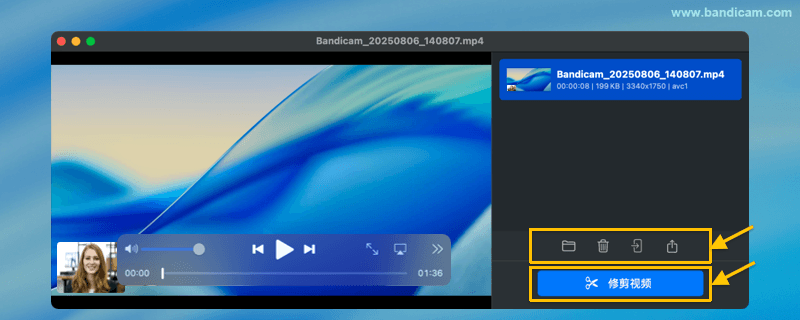
Step 6 View and manage recorded video files
After recording, the output video list will automatically pop up and display.
After selecting a video file, you can directly delete the file, open the file in Finder, send it through AirDrop, or share the video file through the macOS menu.
The 'Trim Video' function can quickly remove unwanted clips.
Through the above steps, you can use Bandicam's selected area recording mode to freely frame and accurately capture any area of the Mac screen,
Suitable for creating tutorial demonstrations, recording key conference content, or showcasing specific areas of application, achieving an efficient and focused screen recording experience.